Connecting Facebook & Instagram
Connecting Facebook lets Scriptiflow post to your Page, run ads, and read your insights. Your Instagram account connects at the same time — as long as it’s a Business or Creator account linked to your Facebook Page.
Before you begin
You’ll need:
- A Facebook Page for your dealership (not just a personal profile), and an admin or editor role on it.
- For Instagram: a Business or Creator account that is linked to that Facebook Page in Meta Business Suite. A personal Instagram account can’t be connected.
If your Instagram isn’t linked to your Page yet, do that first in Meta Business Suite → Settings → Instagram accounts → Add, then come back here.
Connect
Open the Integrations hub
From the sidebar, go to Integrations → All Integrations, then find the Social section.
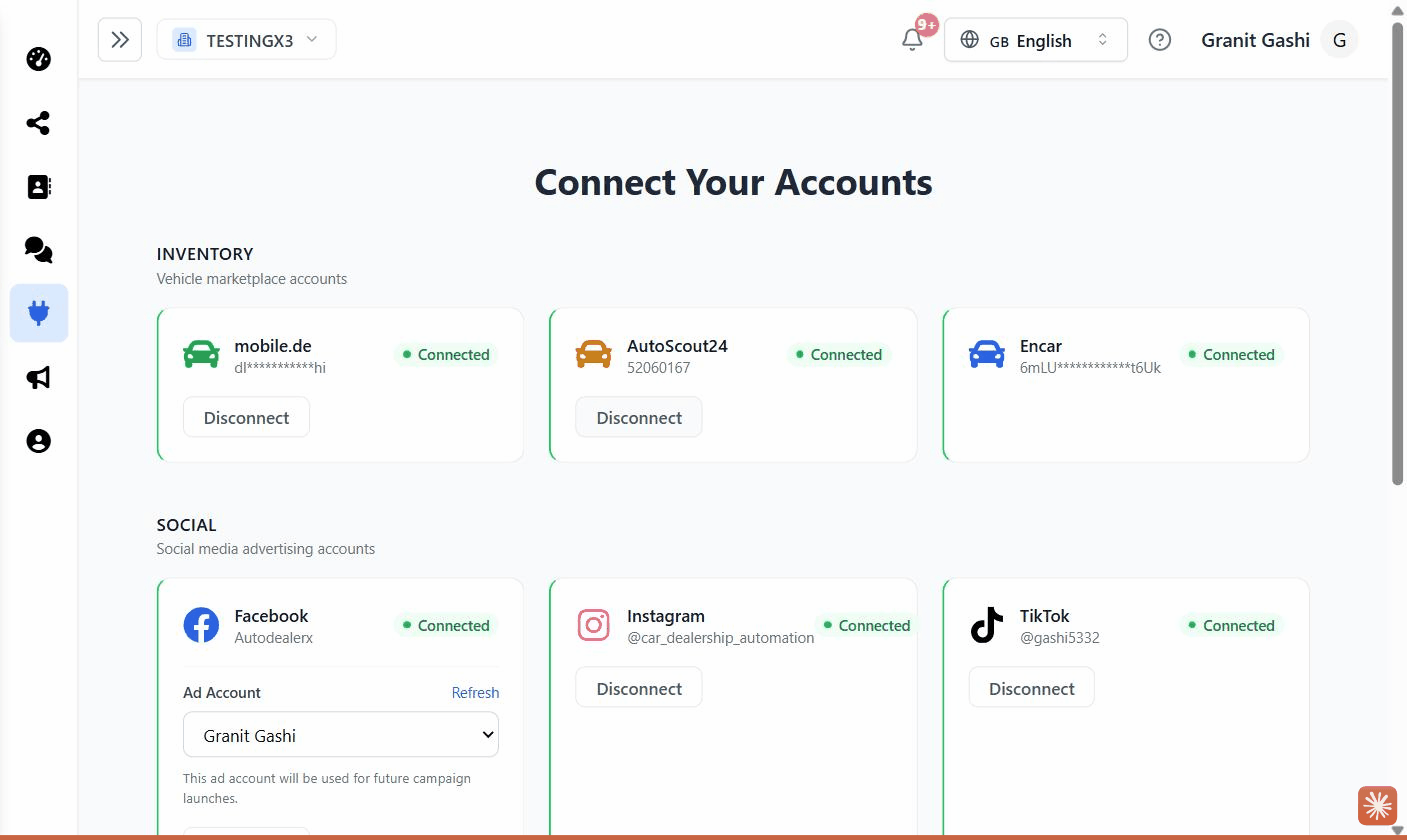
Click Connect on the Facebook card
A Meta login window opens. Sign in to Facebook if you’re not already.
Review and allow the permissions
Meta shows the permissions Scriptiflow needs — to manage your Pages, publish content, read engagement, run ads, and access your linked Instagram. Leave them all enabled and click Continue / Allow.
Keep every permission checked. Turning some off (for example the Instagram or ads permissions) will cause posting or ad features to fail later.
Confirm the connection
The window closes and you’ll see Connected on the Facebook card, with your
Page name. If your Instagram is linked to the Page, its card shows Connected
with your @username too.
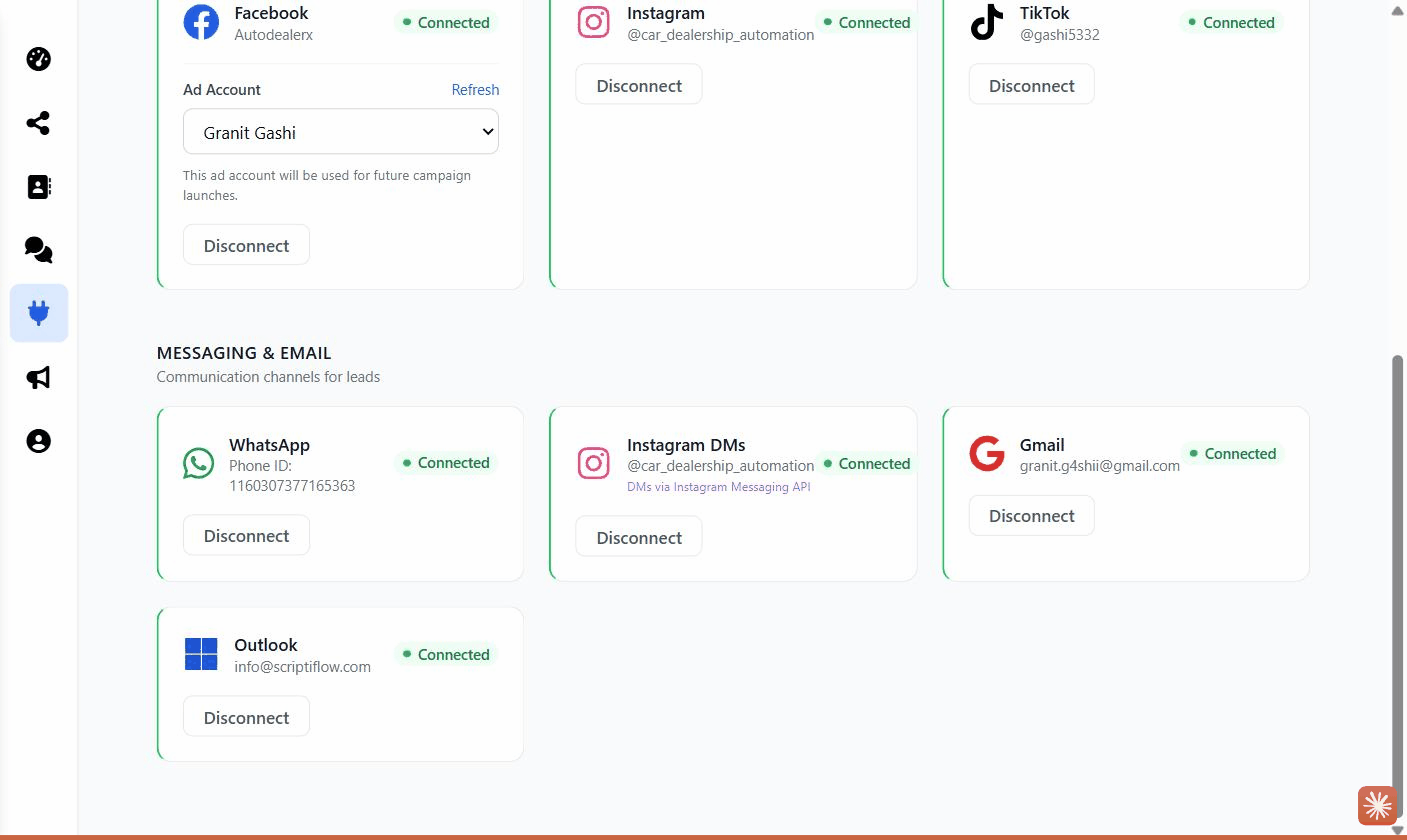
Pick your ad account
When Facebook connects, an Ad Account dropdown appears on the card. Choose the ad account Scriptiflow should use for campaigns, or click Refresh if you don’t see it yet.
What this enables
- Publishing posts and stories to your Facebook Page and Instagram from the Marketing Center.
- Running ad campaigns (see Ads & Campaigns).
- Auto-posting new inventory automatically.
- Reading and replying to Messenger and Instagram messages — see Instagram DMs & Messenger.
Troubleshooting
“No Facebook Pages found.” Your account isn’t an admin/editor of any Page. Create a Page or ask the Page owner to add you, then reconnect.
Instagram card stayed “Not Connected.” Your Instagram isn’t a Business/Creator account, or it isn’t linked to the Page. Fix the link in Meta Business Suite, then click Refresh (or reconnect Facebook).
The Ad Account dropdown is empty. Click Refresh on the card. If it’s still empty, make sure you have an ad account in Meta Business Suite.