Auto-posting
Auto-posting watches your connected mobile.de inventory and, when a new car appears, posts it to your Facebook Page and Instagram for you — with an auto-generated caption and the vehicle’s photos.
What you need first
Auto-posting needs two integrations connected:
- mobile.de — so Scriptiflow can see new listings.
- Facebook & Instagram — so it has somewhere to post.
Turn it on
Open your Auto-Posting settings
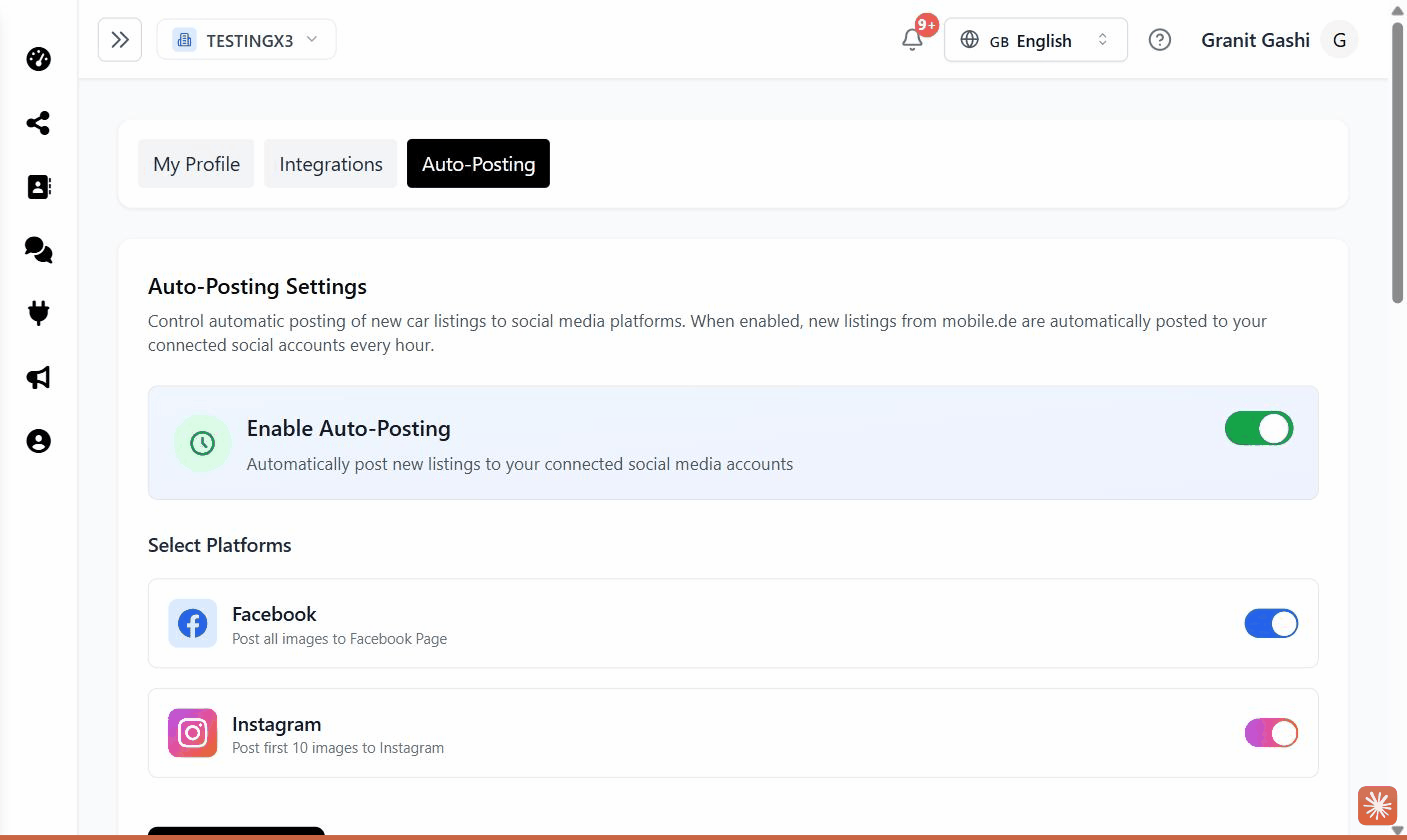
Go to Settings and open the Auto-Posting tab (under your profile settings).
Enable auto-posting
Switch on Enable Auto-Posting. The platform options appear underneath.
Choose your platforms
Tick Post to Facebook and/or Post to Instagram.
Save
Click Save Settings. You’ll see a confirmation that changes take effect on the next check.
How it works
- Scriptiflow checks your mobile.de inventory about once an hour for new listings.
- Each newly detected car is posted to the platforms you selected, with a generated caption and its photos.
- You don’t schedule anything — it runs automatically in the background.
Monitoring
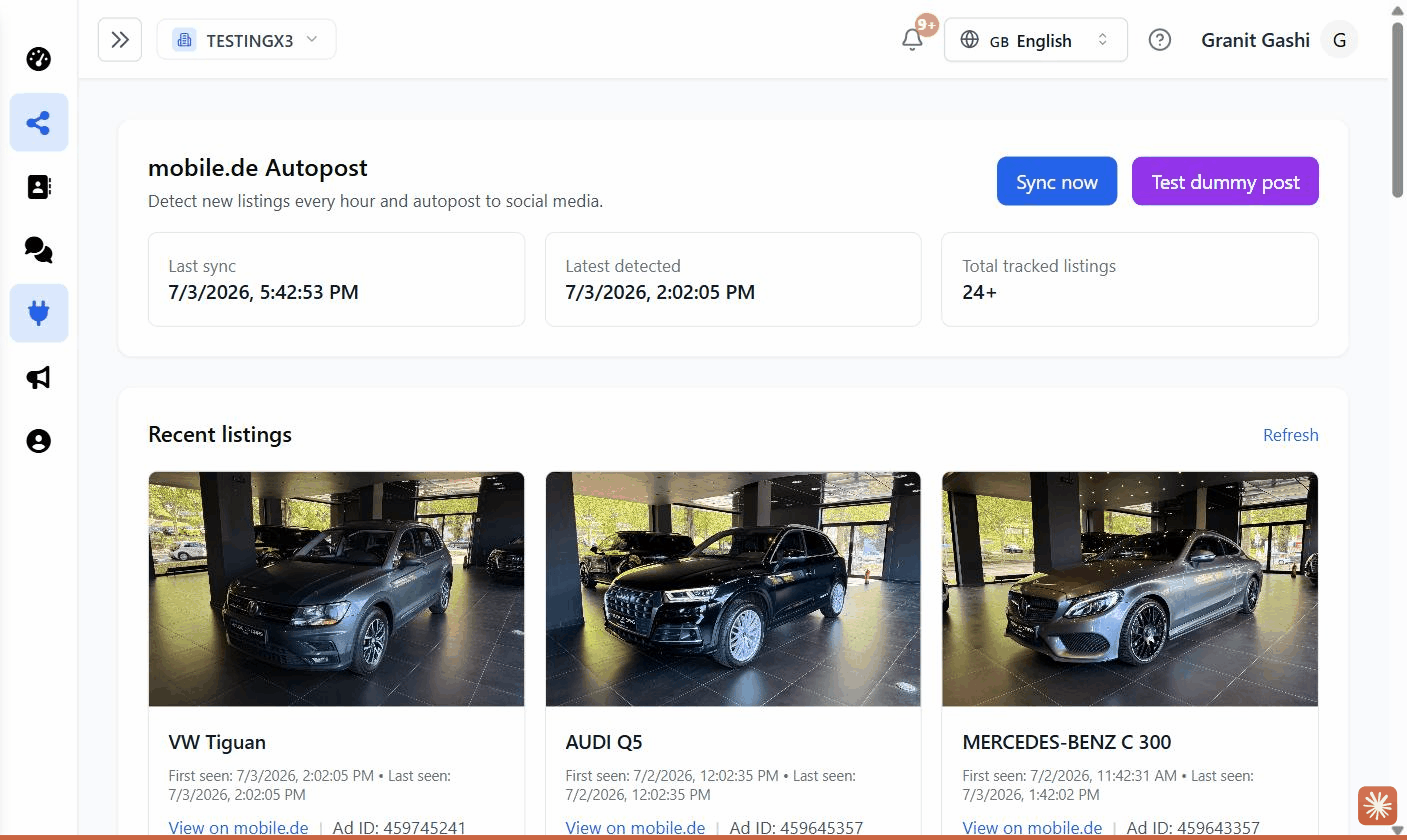
Open Autopost from the sidebar (under Social Media,
/dashboard/integrations/autopost) to see what’s happening:
- Last sync and Latest detected — when it last ran and the newest car it found.
- Total tracked listings — how many cars it’s watching.
- Sync now — check for new listings immediately instead of waiting.
Want to promote cars that aren’t brand new — the ones sitting too long? That’s Aging listings, which pre-builds drafts for you to review.
Troubleshooting
Nothing is posting. Check that both mobile.de and Facebook/Instagram show Connected, and that Enable Auto-Posting is on with at least one platform ticked.
I want to test it. On the Autopost page, use Sync now to trigger a check right away.