Team & roles
Add your colleagues so everyone works from the same place, and use roles to control what each person can see and do.
Managing members is available to brand admins and owners.
Invite a team member
Open your team
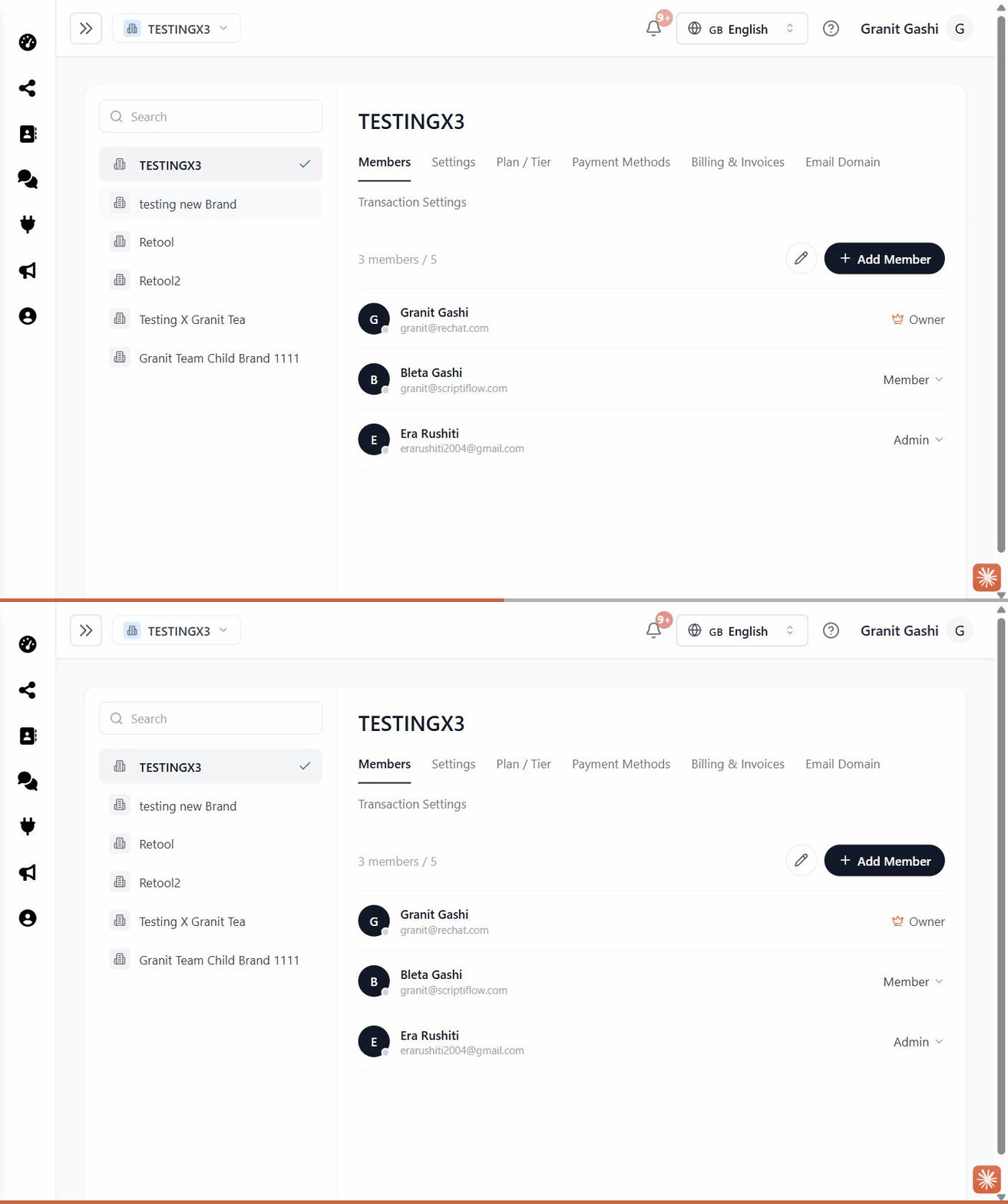
Go to Settings → Members.
Invite by email
Enter your colleague’s work email and choose their role, then send the invite.
They accept
They receive an email with a link to set a password and join your brand. Once they accept, they appear in your Members list.
Roles
Roles determine what a member can access — for example, who can change brand settings, manage billing, or launch ads. Assign the role that matches each person’s job, and update it any time from the Members list.
Multiple locations
If you run several rooftops under a group, you can manage members per brand and switch between them with the brand switcher.
Troubleshooting
I don’t see the Members tab. You need an admin or owner role on the brand. Ask an existing owner to update your role.