Creating a post
This guide walks you through making a social post from one of your vehicles, start to finish. The same flow works for a single square post, a story, a carousel, or a video template.
Want to post directly to social afterwards? Connect your accounts first — Facebook & Instagram or TikTok. You can skip this and just Download the image if you prefer.
Open the Marketing Center and pick a category
From the sidebar, open Marketing Center, then choose a category tab at the top for the kind of post you want — for example Just Listed or Price Drop.
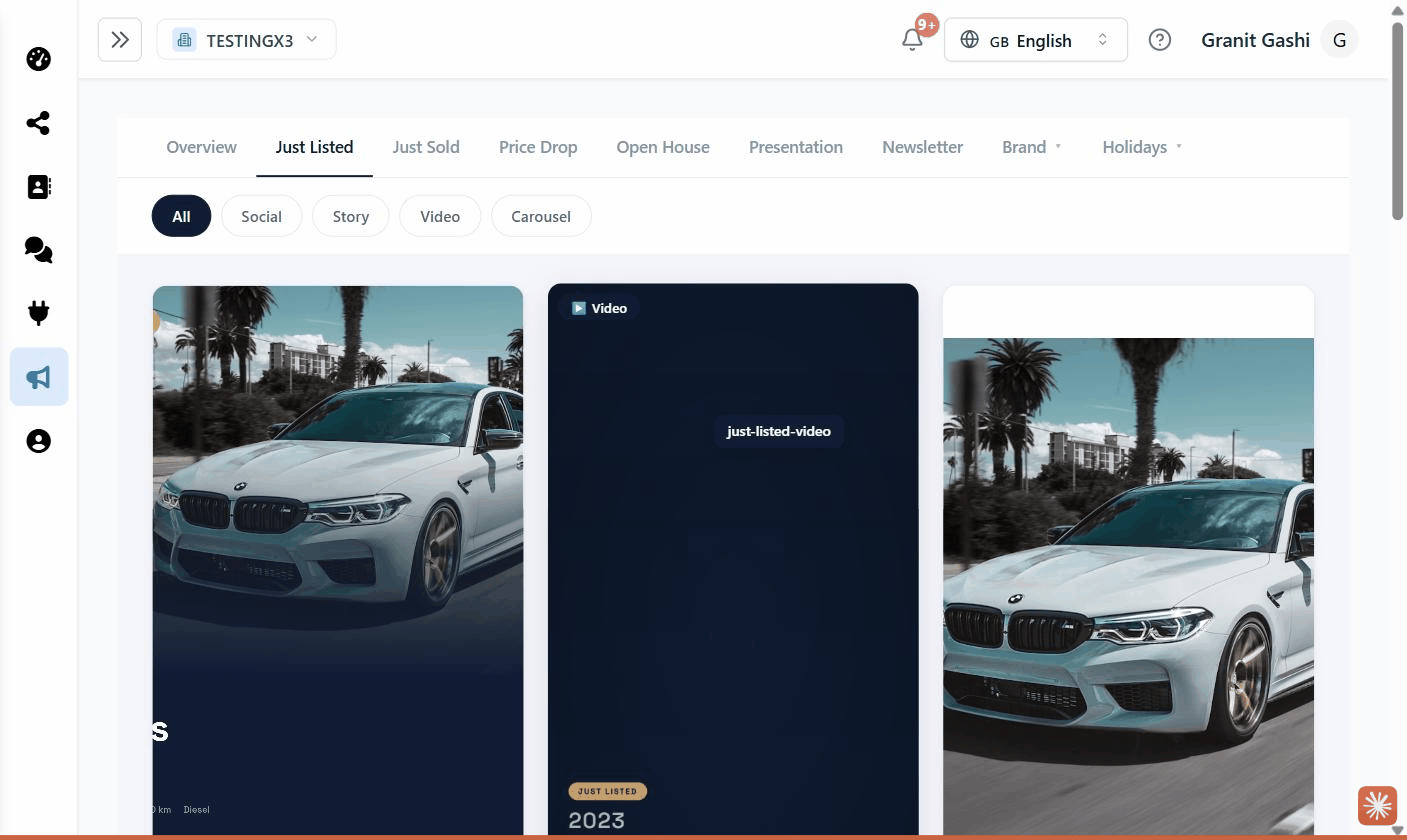
Choose a template
Browse the template gallery. Use the filter pills — All, Social, Story, Video, Carousel — to narrow by format, or the search box to find a design by name. Click a template to preview it, then click Use.
Pick the vehicle
In the vehicle picker, search by year, make, model, or price and select the car you want to feature. If the template supports it, you can switch between Single post and Carousel at the top. Click Next to open the editor.
For multi-car Presentation templates you’ll first be asked to pick a customer (or skip), then select several vehicles. See Creating a presentation.
Edit the design
The editor shows a live preview on the left and controls on the right:
- Photos — reorder, remove, or add photos; for carousels, manage each slide.
- Customize — edit the vehicle details and badge text (e.g. “JUST LISTED”), set your primary and accent brand colours, and add your agent/dealer name. Video templates also let you pick music (upload your own or choose from the library).
Setting your brand colours once in Settings → Brand means new posts start on-brand automatically. See Setting up your brand.
Save and move to sharing
When the design looks right, click Save. The Share panel slides in so you can publish, schedule, or download. Continue in Scheduling & publishing.
Tips
- Reuse a design fast: duplicate a slide or swap the vehicle rather than starting over.
- Stories vs. feed: story templates are sized 9:16 for Instagram/Facebook stories; standard social posts are square (1:1).
- No account connected yet? You can still Download the finished image and post it manually.