Creating a presentation
Start a presentation
Open the Marketing Center and choose the Presentation category, then pick a presentation template.
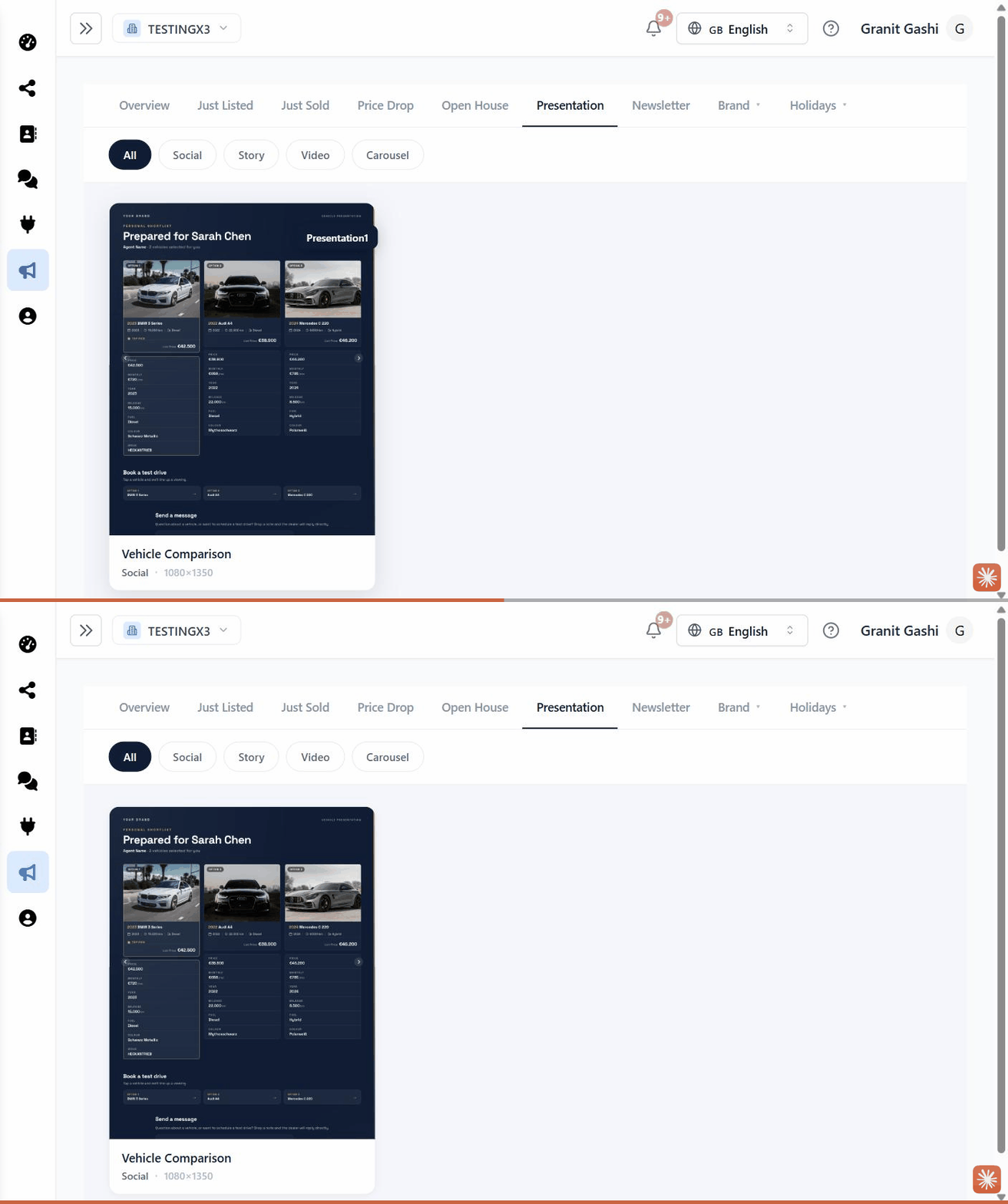
Choose the customer (optional)
You can attach the presentation to a customer so it’s personalised, or Skip to build a generic one.
Select the vehicles
Pick the cars you want to include — a presentation holds several vehicles. Search by year, make, model, or price, tick each one, then click Next.
Customise (optional)
In the editor you can adjust brand colours, your agent/dealer name, the customer name, and optional finance details. Click Save when you’re happy.
Get the link and QR code
The Manage Link panel opens with everything you need to share:
- Your link — copy it with Copy, or open it with the ↗ button.
- QR code — click Download QR to save it for print or in-store displays.
Share it
Send the link by email, SMS, or WhatsApp, or print the QR code. When the customer opens it, they can browse the cars and submit the contact form — which reaches you as a lead.
Managing a presentation
The Manage Link panel also lets you:
- See performance — Views, Leads, Last viewed, and Status.
- Regenerate — after editing the design, click Regenerate to update the live page.
- Archive — take the link down, or set an expiry date.
Edited the presentation but the live link looks unchanged? Click Regenerate — the public page updates from a saved snapshot, so it only refreshes when you push your changes.