Connecting mobile.de
Connecting mobile.de pulls your live vehicle listings into Scriptiflow, so your inventory is ready to use across marketing, presentations, and auto-posting.
Before you begin
You’ll need your mobile.de account username and password (the login for your dealer account).
Your credentials are stored encrypted and are only used to sync your listings.
Connect
Open the Integrations hub
Go to Integrations → All Integrations and find the Inventory section.
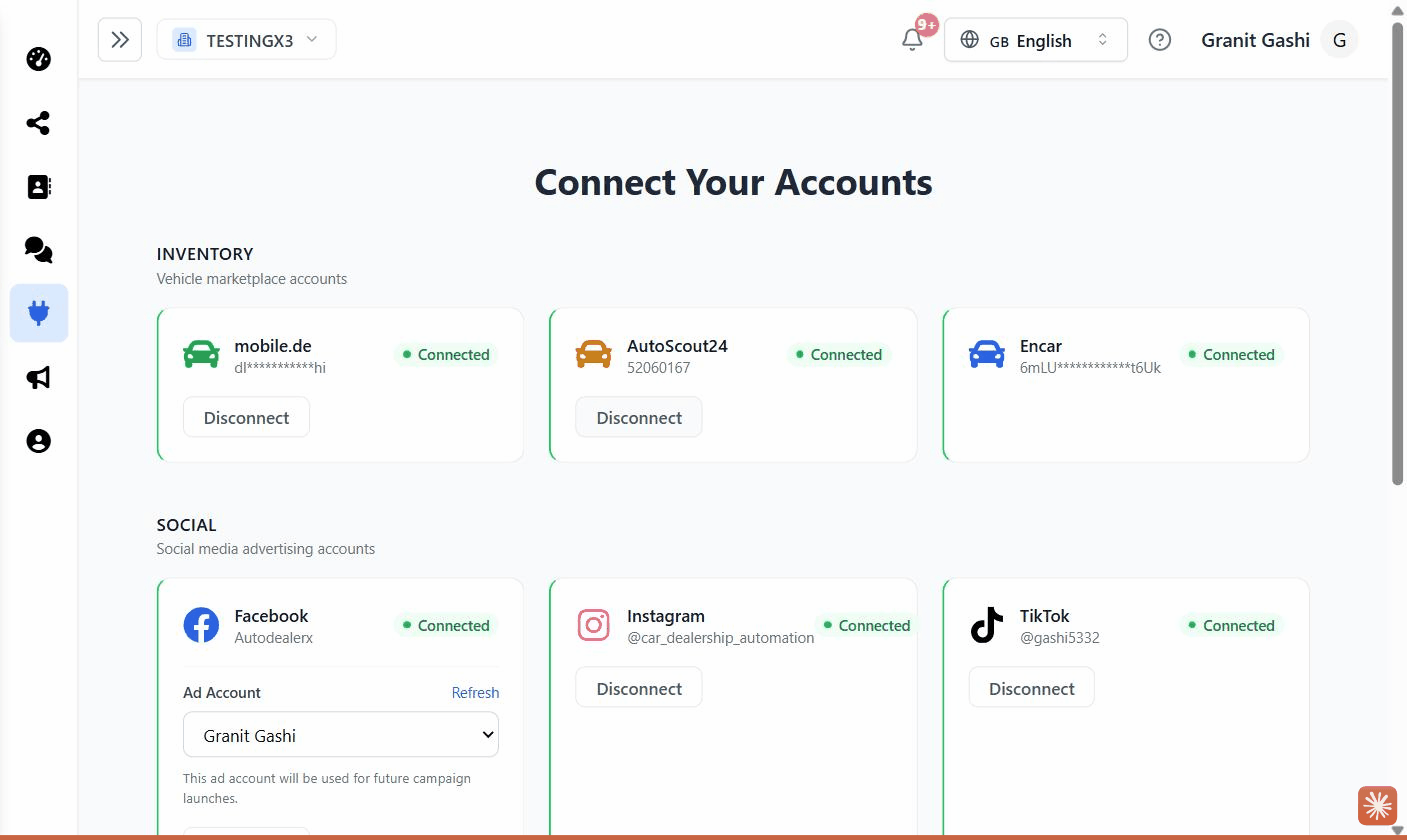
Click Connect on the mobile.de card
A Connect to mobile.de window appears.
Enter your username and password
Type your mobile.de Username and Password (use the show/hide toggle to check the password), then click Connect.
Confirm
The card shows Connected. Your listings begin syncing and will appear under Inventory and in the vehicle pickers throughout Scriptiflow.
What this enables
- Your live listings appear in My Inventory and in every vehicle picker (Marketing Center, Presentations, ads).
- Auto-posting: new mobile.de listings can post to Facebook and Instagram automatically.
- Manual re-sync any time from Autopost (
/dashboard/integrations/autopost) using Sync now.
You can connect more than one mobile.de account to a brand if you manage multiple dealer logins.
Disconnect
Open the mobile.de card and click Disconnect. Syncing and auto-posting for that account stop; your existing Scriptiflow data remains.
Troubleshooting
“Connection failed.” Double-check the username and password by logging in directly at mobile.de. If they work there but not here, try again in a minute — mobile.de occasionally rate-limits logins.
Listings didn’t appear. The first sync can take a few minutes. Open Autopost and click Sync now to trigger it manually.